
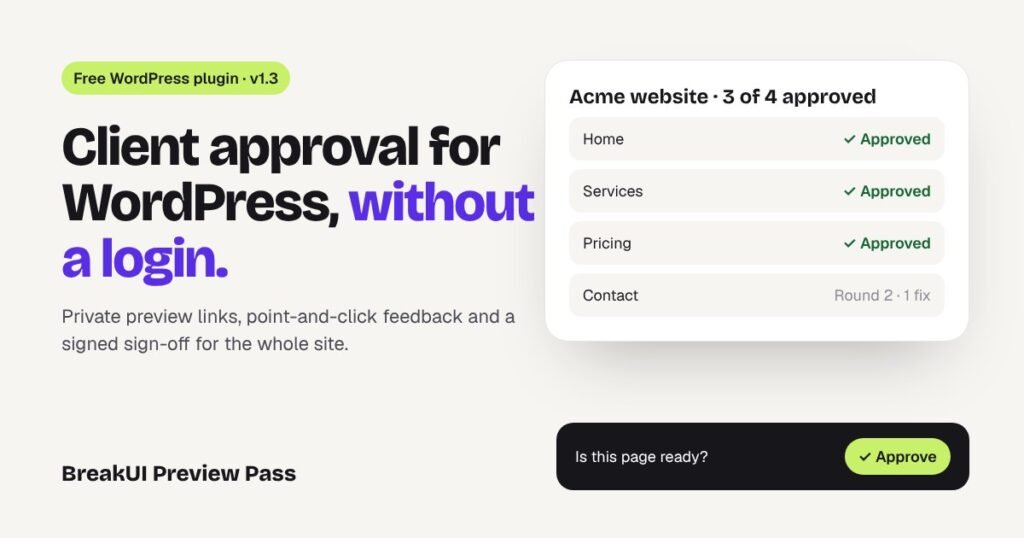
Every WordPress project ends the same way: the page is built, and now the client has to look at it and say yes. That last step is often the slowest part of the job. Screenshots get lost in email, staging logins get forgotten, and “the button on the left” could mean three different buttons.
This guide shows how to get WordPress client approval on a draft page, or a whole site, without giving the client a login. We compare the common options, then walk through the workflow we use with BreakUI Preview Pass, a free plugin we built for exactly this job.
What is the best way to get client approval in WordPress?
The best way is to send the client a private link to the real draft page, let them approve it or point at what to change on the page itself, and keep a record of who approved what. That gives you three things email and screenshots can’t: the client sees the page exactly as it will go live, feedback is tied to a specific element, and the approval is written down.
The usual options, compared
Most teams try one of these before they settle on a workflow:
| Method | Client needs a login? | Feedback on the page? | Approval record? |
|---|---|---|---|
| Screenshots or PDFs by email | No | No, it’s in the email | Only the email thread |
| A staging site | Often | No | No |
| A WordPress user account for the client | Yes | No | No |
| A public “share draft” link plugin | No | No | No |
| BreakUI Preview Pass | No | Yes, click the element | Yes, per page and per site |
Screenshots are quick but go out of date the moment you change something, and they never show the mobile layout. Staging sites and client accounts work, but they add passwords, and clients wander into the dashboard. Basic share-draft plugins solve the login problem but stop there: the feedback still arrives by email, with no way to tell which part of the page it is about.
How to share a draft WordPress page with a client
Here is the full workflow with BreakUI Preview Pass. It is free on WordPress.org, works with the block editor, Breakdance, Bricks and Elementor, and needs WordPress 6.2+ and PHP 7.4+.
1. Install the plugin and add your brand
Go to Plugins → Add New, search for “BreakUI Preview Pass”, install and activate it. Then open Preview Pass → Settings. On the General tab you can add your logo, pick your button colours and edit every message the client sees, so the review screens look like your studio, not ours. Under Client tools, choose which extras clients get: text suggestions, voice notes, link activity and the client portal.
2. Create a private preview link
Save your draft first, because the preview shows the latest saved version. Then click Create link in the editor sidebar, the Pages list or Preview Pass → Preview Links. You can set:
- How long the link works, from 1 hour to 30 days, or no expiry
- An optional password, with a limit on wrong attempts
- The client’s name and email, so feedback and reminders are addressed properly
- A “Review by” date and an automatic reminder before it is due
The link only opens that one page. It gives no access to the dashboard, the REST API or the media library, is never cached or indexed, and you can revoke it at any time.
3. Let the client review the real page
The client opens the link in their own browser. There is no account to create. They see your theme, your layout and your fonts, with a small review bar at the bottom asking “Is this page ready?”
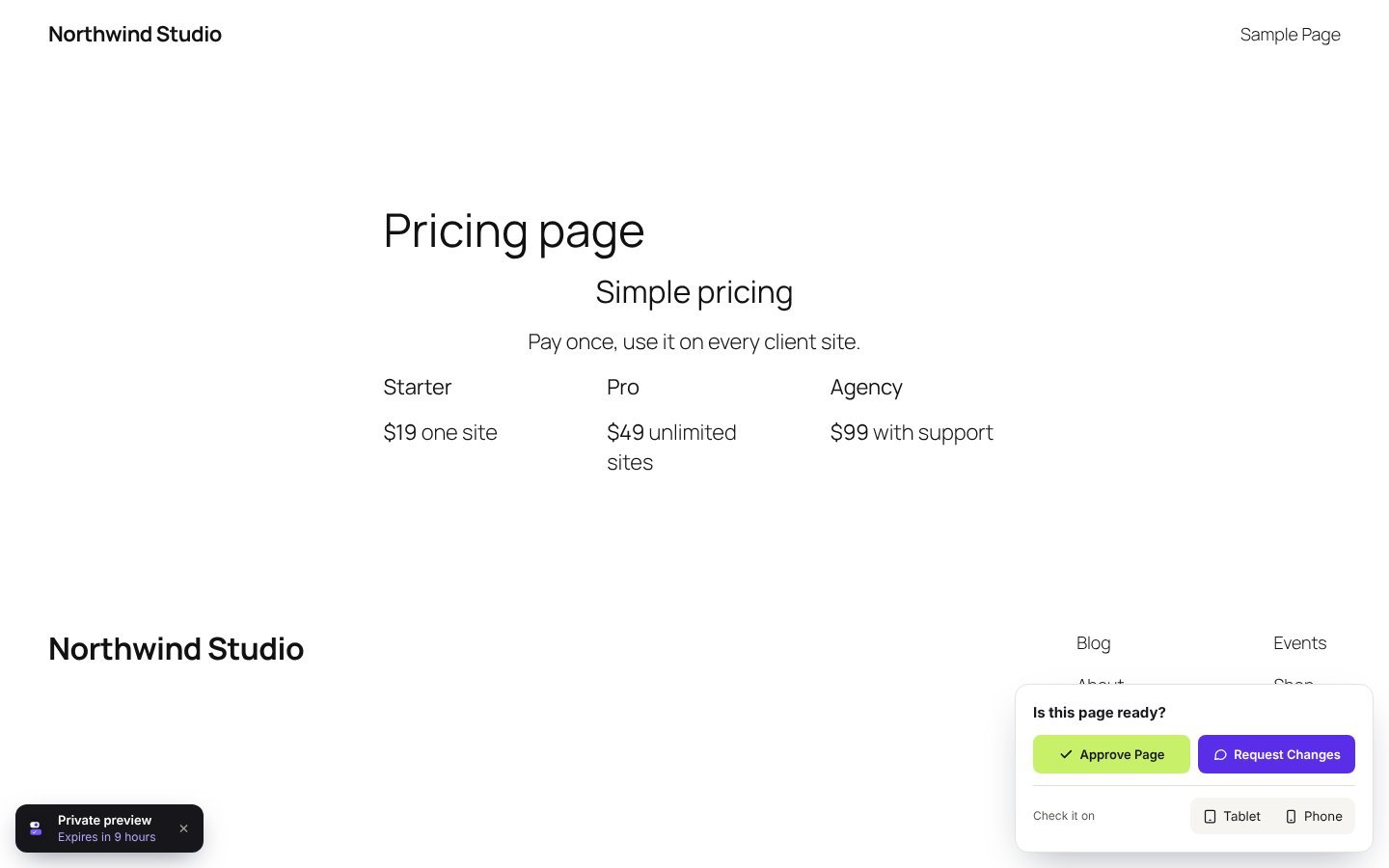
From there they can:
- Approve the page in one click
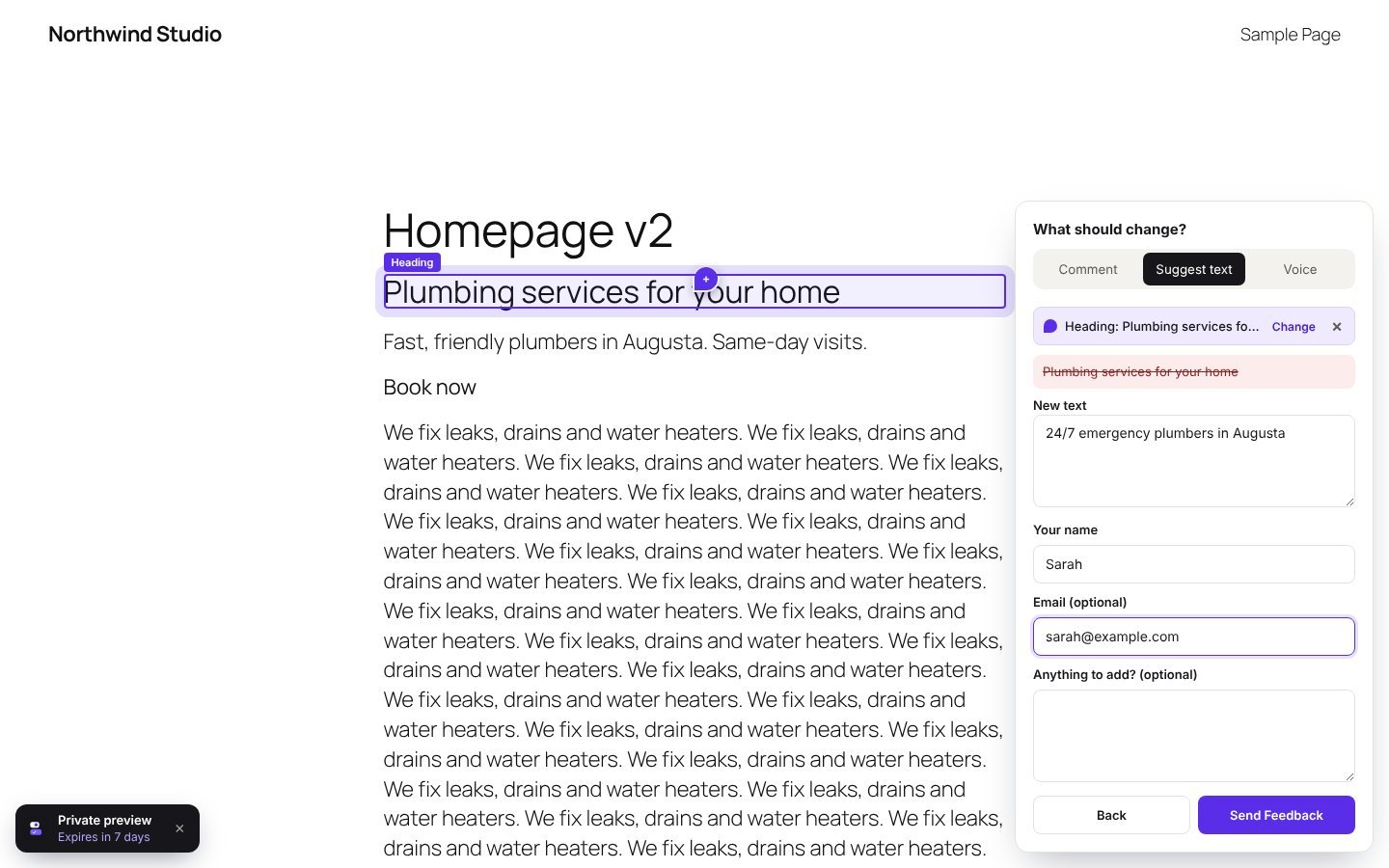
- Click any element and leave a comment, with a screenshot of that spot attached automatically
- Suggest text: click a heading or paragraph and type the new wording
- Record a voice note of up to two minutes if typing is too slow
- Switch to tablet or phone width and leave notes there, so you know which screen a note is about
4. Work through the feedback
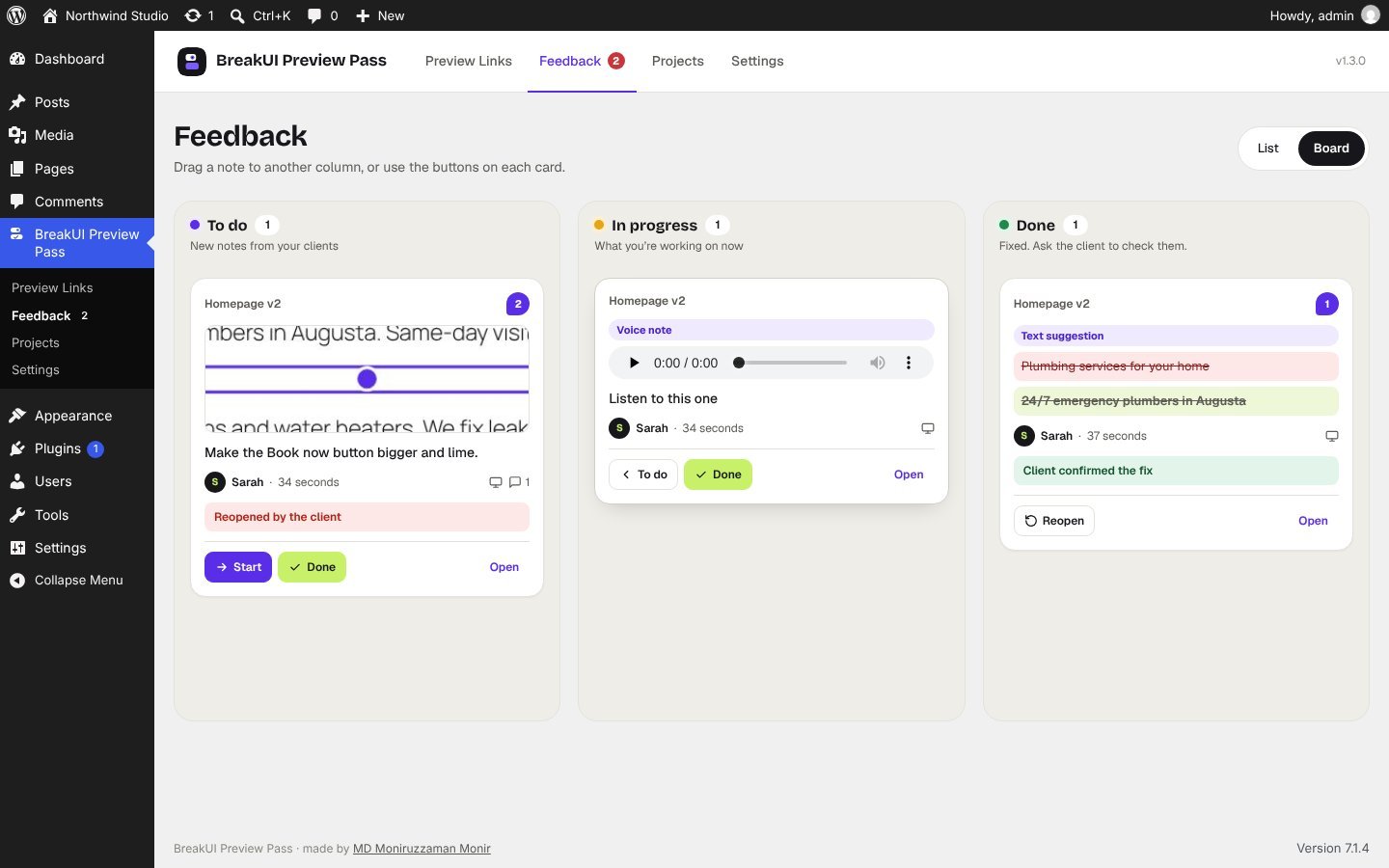
Every note lands in Preview Pass → Feedback, grouped by page, with the element’s text, the client’s device and browser, and a screenshot with the spot outlined. Click “Show on page” to jump straight to it. Switch to the Board view to drag notes from To do to In progress to Done, and reply on any pin. The client sees your reply on the page and can answer back.
Before you treat a quick “looks good” as final, open Link activity for that link. It shows how many times it was opened, time on page, scroll depth, devices, and which sections the client actually saw. If most visits stopped halfway down, ask about the bottom half before you publish. The data is stored on your own site, and there are no tracking scripts.
5. Ask the client to check your fixes
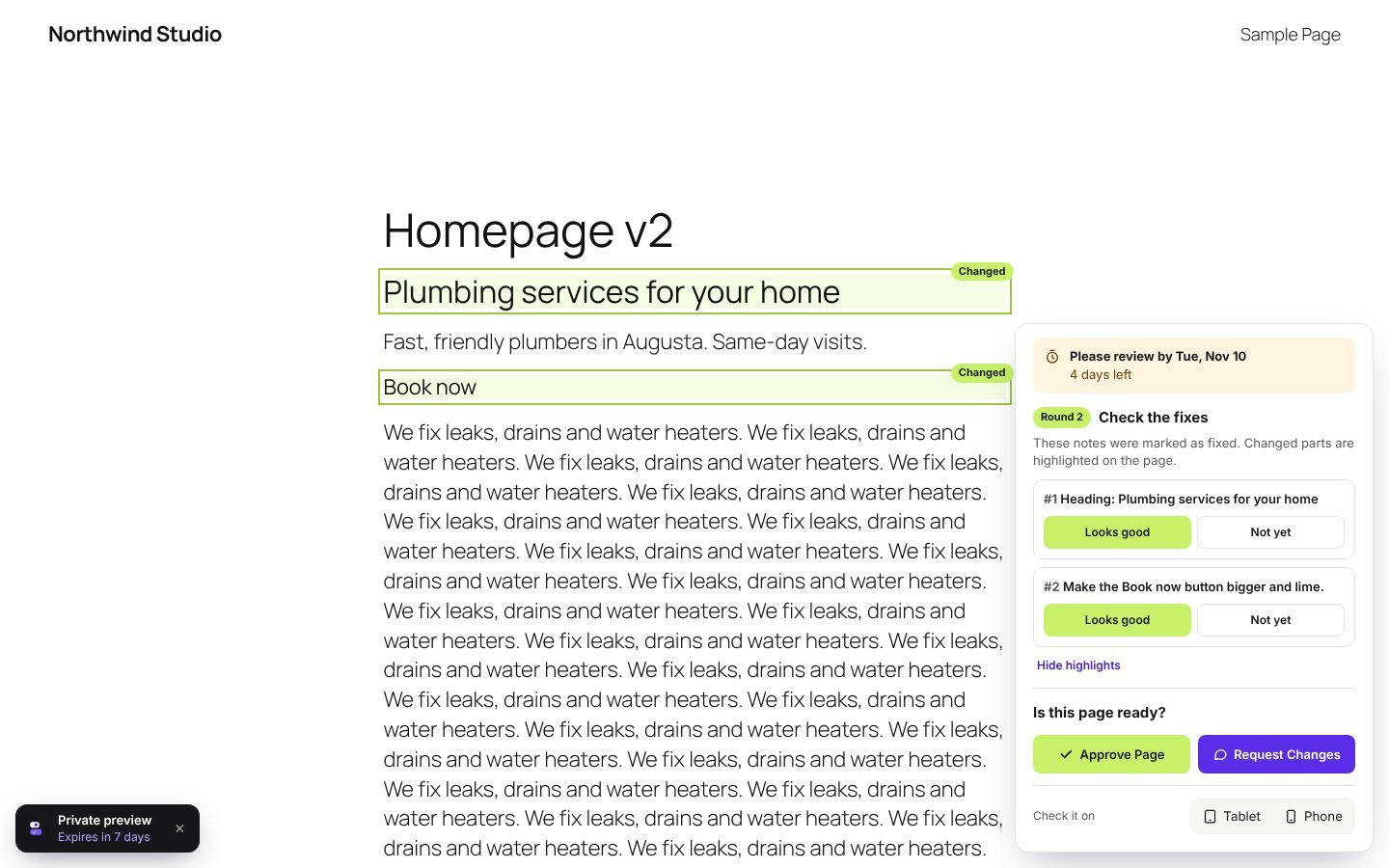
When you have made the changes, click Ask client to check. This starts a new review round. The client gets a short checklist of only the notes you fixed, with the changed parts highlighted on the page, and marks each one as “Looks good” or “Not yet”. No more re-reading the whole page to find what changed.
6. Get the whole site signed off
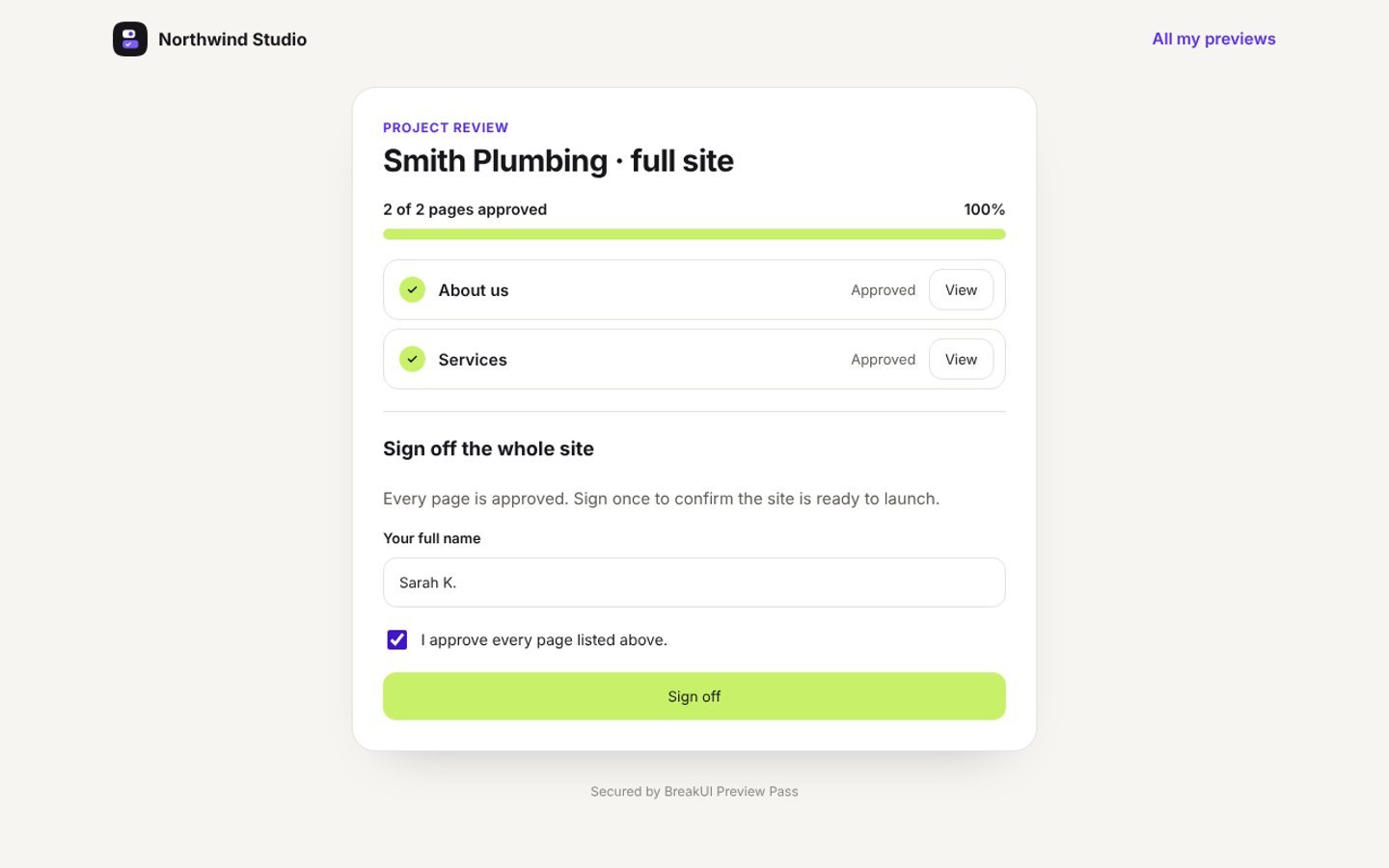
For a multi-page build, create a project under Preview Pass → Projects, add the pages, and send one project link. The client sees every page with its status and works through them one by one. When all pages are approved, they sign off the site by typing their name.
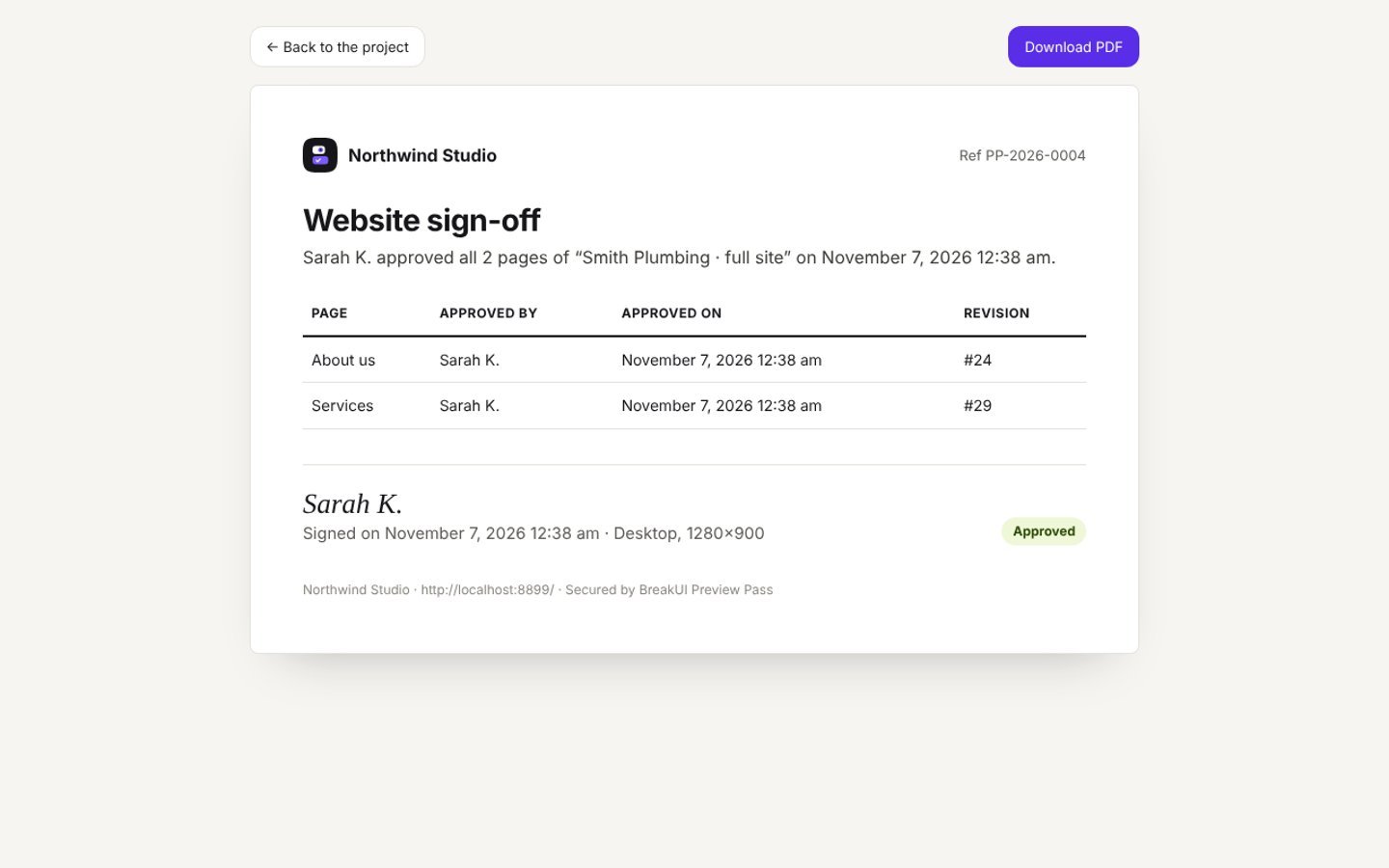
You get a sign-off record listing each page, who approved it, when, and which revision. It opens as a clean printable page, so you can save it as a PDF and attach it to the invoice or the project file.
How do I get notified when a client approves?
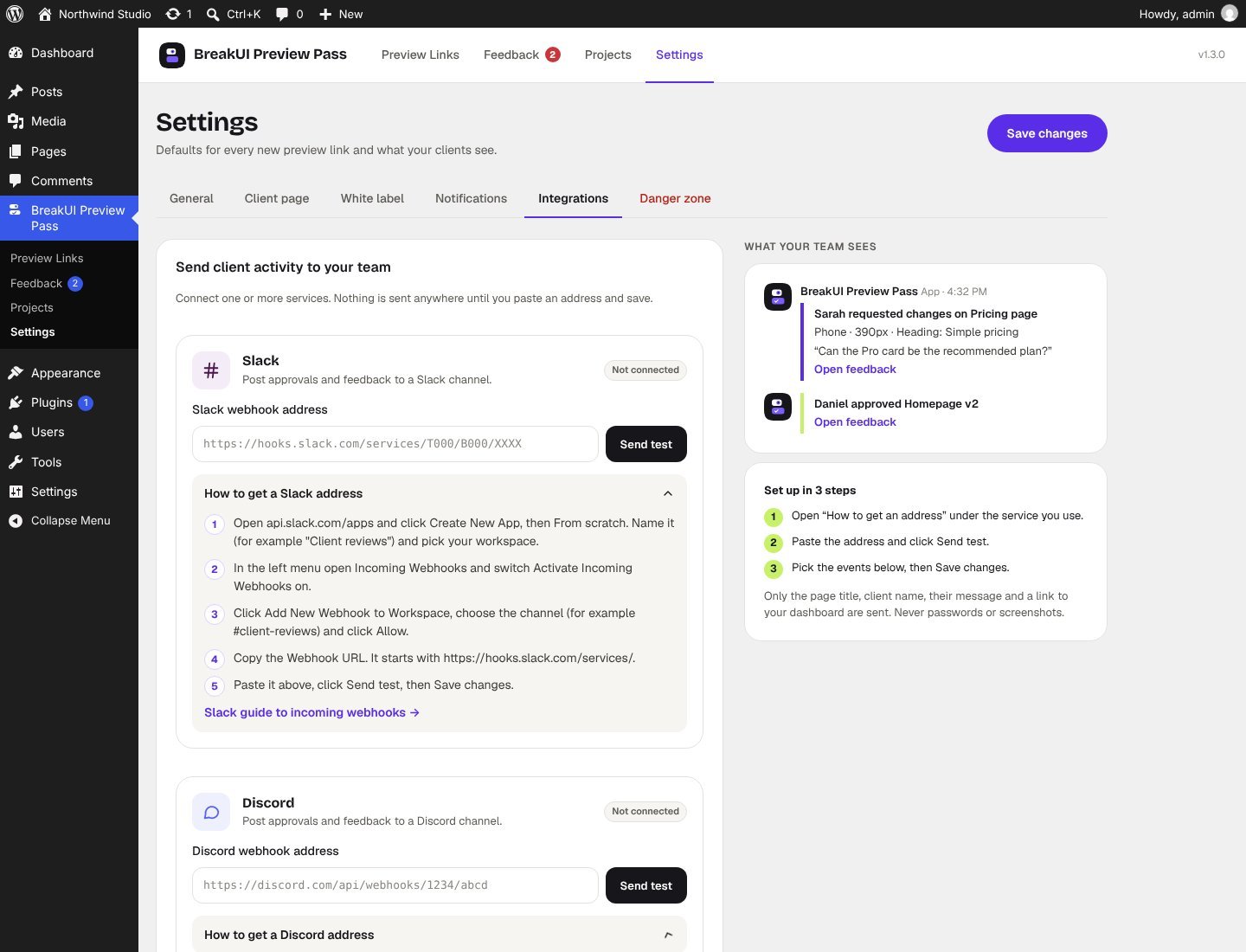
You get an email for every approval and every new note by default. If your team lives in chat, open Settings → Integrations and connect:
- Slack: create a Slack app, turn on Incoming Webhooks, add one to your channel and paste the hooks.slack.com URL
- Discord: in the channel go to Edit Channel → Integrations → Webhooks → New Webhook and copy the URL
- Any webhook: paste an endpoint from Zapier, Make, n8n or your own app. Add a secret and each request carries an
X-PreviewPass-Signatureheader you can verify
Pick which events to send, such as new feedback, page approved or project signed off, and click Send test to check it works.
Tips for faster client approvals
- Send one link per decision. A project link for a full site, a single page link for a quick change.
- Always set a review date. A visible deadline and a friendly reminder do most of the chasing for you.
- Ask for the mobile view. Most visitors will see the phone layout, so ask clients to tap Phone before they approve.
- Use suggestions for copy. Clients usually know the words they want. Let them type them instead of describing them.
- Check activity before you publish. An approval after 20 seconds on a long page is worth a quick follow-up.
- Keep the record. Save the sign-off PDF with the project. It settles “we never agreed to that” in seconds.
If you build with Breakdance, pair this with our guide on how to hand over a Breakdance site so clients can’t break it.
Frequently asked questions
Does my client need a WordPress account to review a page?
No. The client opens a private link to that one page. There is no account or login, and you can add a password if you want one.
Is a private preview link safe?
Yes. Each link uses a long random token, opens only one page, expires when you choose and can be revoked at any time. Previews are never cached or indexed, and the link gives no access to the dashboard or the REST API.
Can clients approve a whole website at once?
Yes. Put the pages in a project and send one project link. The client approves each page, then signs off the site, and you get a sign-off record you can save as a PDF.
Does it work with page builders?
Yes. Previews render through the normal WordPress front end, so block editor, Breakdance, Bricks and Elementor pages look exactly as they will when published.
Is BreakUI Preview Pass free?
Yes. Every feature is free, including white label, with no Pro version and no license key.
Does the plugin send data to outside services?
No, not by default. Screenshots, voice notes and activity stay on your server. Data only leaves your site if you connect Slack, Discord or a webhook yourself.
Try it on your next project
BreakUI Preview Pass is free on WordPress.org. Install it, send your next client a link, and get a clear yes, or a clear list of changes, without a single “which button did you mean?” email.