
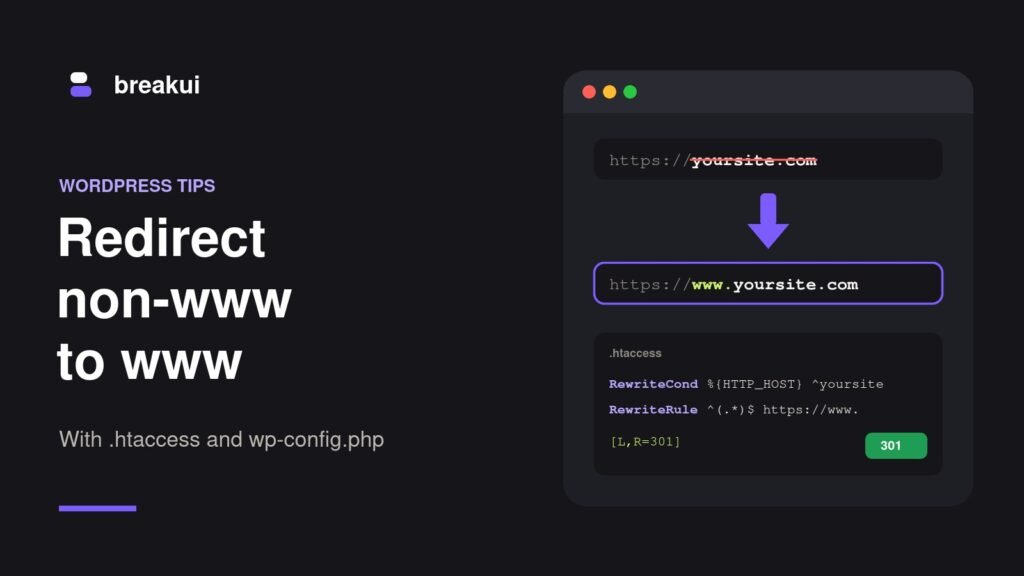
Hey, Monir here from Breakui! Today, I’m going to help you solve a common problem many website owners how to redirect non-www URLs to www URLs in WordPress. If you’re running a website and want everything to go to the www version of your domain (because, let’s be honest, it just looks cooler and sometimes helps with SEO), I’ve got you covered!
Let me explain the process in a simple way, so anyone can do it. We’ll be doing this by adding some code to two important files: the .htaccess file and the wp-config.php file.
Why Should You Redirect Non-www to www?
Before we get into the technical stuff, let me explain why you’d want to do this.
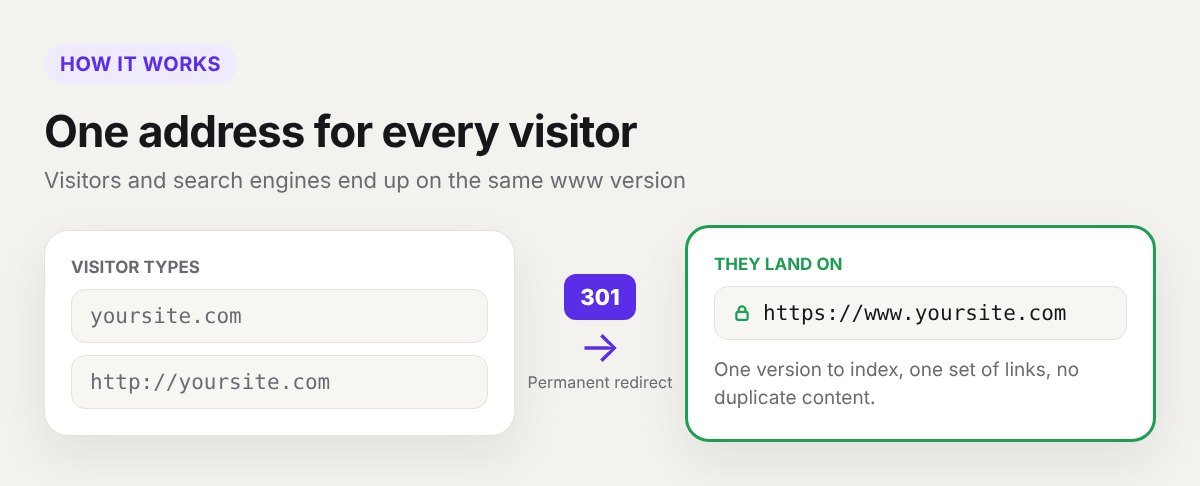
- Consistency: Having both www and non-www versions can confuse search engines. You want to make sure all traffic goes to one version to avoid duplicate content issues.
- Branding: Some people just like how the www looks. It’s more official and traditional.
- SEO: Search engines treat www and non-www as two different websites. Redirecting helps ensure that all your traffic goes to the same place, which can help your SEO rankings.
Step 1: Editing Your .htaccess File
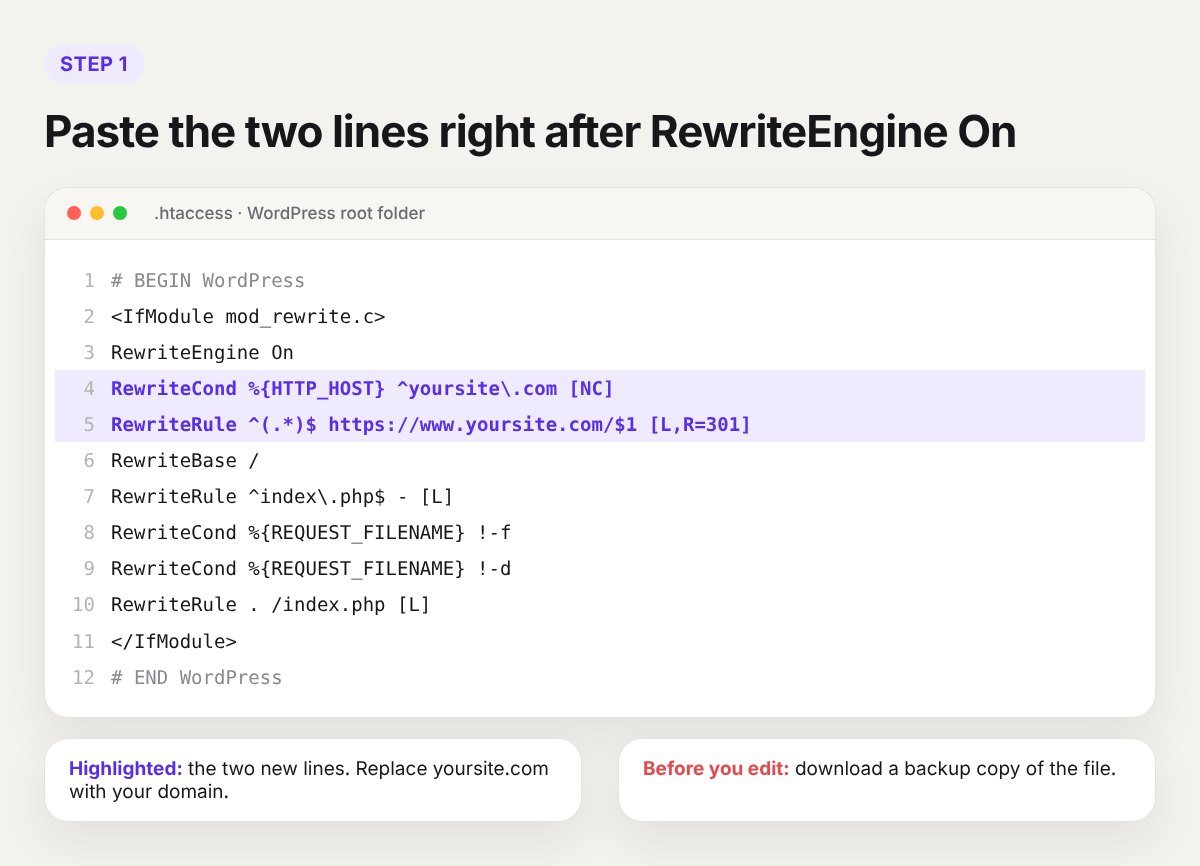
Your .htaccess file controls many important settings in your WordPress site, including URL redirections. This file is usually located in the root folder of your WordPress installation.
Here’s the code you need to add after RewriteEngine On:
RewriteCond %{HTTP_HOST} ^yoursite\.com [NC]
RewriteRule ^(.*)$ https://www.yoursite.com/$1 [L,R=301]
This code basically says, “Hey, if someone tries to visit the non-www version of my site, redirect them to the www version!”
Where to add this?
- Open your
.htaccessfile. - Look for the line that says
RewriteEngine On. - Paste the code right after that line.
Step 2: Editing the wp-config.php File
Now, we need to make sure WordPress also knows we want to use the www version for everything. For that, we’ll edit the wp-config.php file, which is also in the root folder of your WordPress installation.
Here’s what you need to add:
define('WP_HOME','https://www.yoursite.com');
define('WP_SITEURL','https://www.yoursite.com');
What does this do?
- These two lines tell WordPress to always load the www version of your site, whether it’s on the backend or frontend.
How to do it:
- Open your
wp-config.phpfile.- Find a safe spot (usually after the database settings).

- Find a safe spot (usually after the database settings).
- Paste the code.

Step 3: Test Your Website
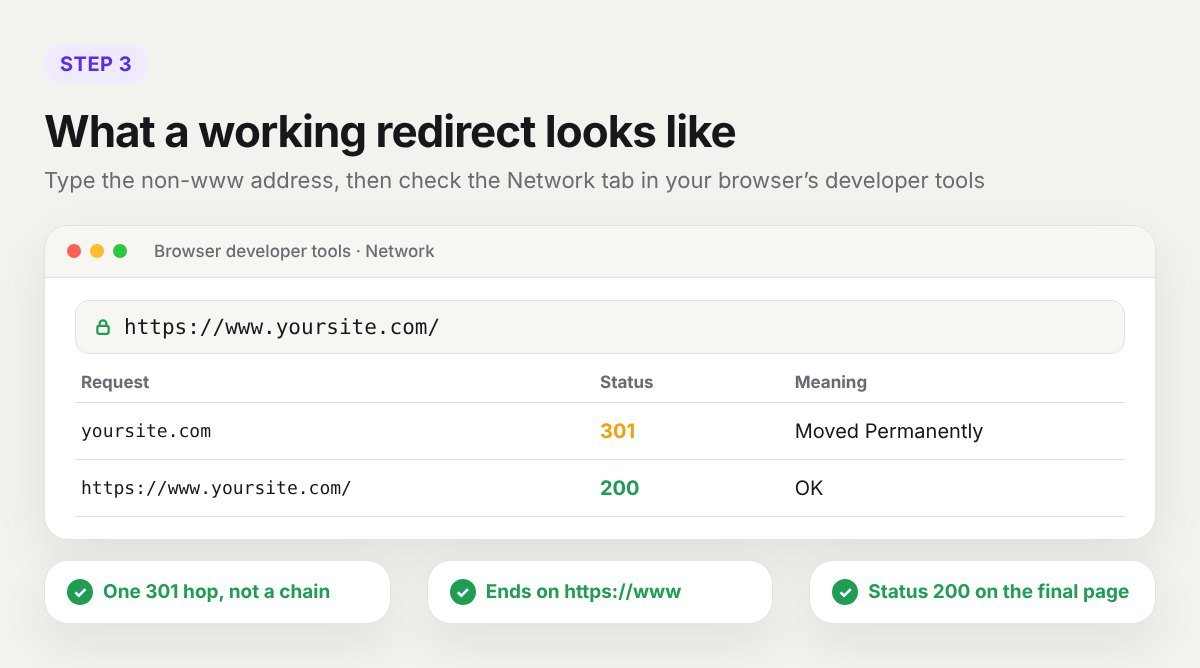
After adding these codes, go to your browser and try typing your non-www domain, like http://yoursite.com. If everything is set up properly, it should automatically take you to https://www.yoursite.com. If not, double-check your .htaccess and wp-config.php files for any typos.
FAQs on Redirecting Non-www to www URLs in WordPress
1. Why should I redirect non-www to www in WordPress?
Redirecting helps create consistency for your users and search engines. It ensures that all traffic is directed to one version of your site, improving your SEO and avoiding duplicate content issues. Plus, it just makes your site look more professional!
2. Will this affect my SEO?
Yes, in a positive way! When search engines see all your traffic going to the www version, they rank your site better because you’re not splitting traffic between two URLs. This improves your overall SEO strategy.
3. Can I redirect using a plugin instead of editing files?
Yes, you can use plugins like Redirection or All-in-One SEO, but manually editing the .htaccess and wp-config.php files gives you more control and reduces dependency on plugins.
4. Is it safe to modify the .htaccess and wp-config.php files?
Yes, but make sure you create a backup before making any changes. A small mistake in these files could cause issues, but if you follow the steps carefully, you’ll be fine.
5. Can this method be used for any type of website, or just WordPress?
This guide is specifically for WordPress, but the .htaccess method works for any website that runs on Apache servers.
Final Thoughts
That’s it! You’ve successfully redirected your non-www URLs to www in WordPress. By doing this, you’ve improved your site’s branding and SEO, and you’re giving your visitors a more consistent experience.
Hope this guide helps you set up your website properly. And if you’re still confused, feel free to reach out for help. We’re always happy to help each other out, right?
Good luck with your website journey, and stay tuned for more tips!